Connect your AI to Vitrina
Connect your assistant to Vitrina over MCP, at one address.
Vitrina speaks MCP (Model Context Protocol) at a single address:
https://api.vitrinadev.com/mcpYou paste that address into Claude, Claude Code or Cursor, and authorise once. From there your assistant answers with your workspace's data: the unanswered leads, the week's calendar, the catalogue.
What it sees, and what it does not
The connection starts out read-only and narrow. It is not your API key: it is a different profile, with fewer tools and none that write.
Your AI can read conversations, contacts, leads and tickets; your support metrics and your AI agents' metrics; the calendar and the appointments; and your catalogue. The exact list is in Connector tools, generated from the real catalogue. It holds your vertical's own tools, and only your vertical's.
On top of those come three generic tools: search_operations, describe_operation and call_operation. They reach any published operation of the API, with your own credential and your own permissions. What they touch and what they don't is in Use the whole API from your AI.
Writing is granted per area
On the authorisation screen, below the read access, there are the «Write permissions (optional)». There's one line per area, each with a switch that is off: Contacts, Leads, Cases, Conversations, Calendar, Catalogue and Messages to customers. Leave them all alone and the connection can change nothing.
Each switch is bounded twice: the application has to have asked for it, and your role has to include it. An area your role doesn't allow is shown disabled. Authorise it anyway and the answer is an error naming the missing permission. The credential is still yours, so narrowing your role later narrows the connection on its next call.
What's never an area you can grant: creating or revoking credentials, webhooks, the workspace settings and the shape of your boards. What the specification marks as sensitive stays out of MCP under any permission, whatever the workspace's vertical. See Personal and health data.
When you grant «Messages to customers», writing to one contact at a time goes out directly. From the fourth distinct contact within ten minutes, the message waits for someone on the team to approve it in Follow-ups → Approvals. See Send messages.
A tool that does something you didn't grant does not exist for that connection. That's not a promise about the model's behaviour: it isn't in the list, and a call to one of them answers that it doesn't exist.
{
  "content": [
    { "type": "text", "text": "MCP error -32602: Tool tenant_settings_update not found" }
  ],
  "isError": true
}
That's the answer to tenant_settings_update, a tool that exists in the API's full catalogue, asked for with a connector credential.
Trap
/mcp sits at the root, not under /api/v1
The rest of the API hangs off https://api.vitrinadev.com/api/v1/…. The MCP
server and its authorization server live at the root of the host.
https://api.vitrinadev.com/api/v1/mcp answers 404, and the AI client shows
it as "I could not connect to the server".
The two ways to authorise
| How | For whom | |
|---|---|---|
| Sign in (OAuth) | You paste the address, Vitrina opens, you sign in and grant permission. You copy no secret. | Claude, Claude Code, Cursor |
| Connection key | You create an sk_ key in Vitrina and paste it into your client as an Authorization header. | Any MCP client, and the cases with no browser (a server, a container) |
Both end in the same place: a credential narrowed to the connector profile. The first never makes you handle a secret, expires by itself every hour and renews without you doing anything. The second is a string you keep.
Both are created and revoked in Connections → MCP, in the application. Two tables live there and they are not the same thing: «Conexiones activas» are the keys, «Aplicaciones conectadas» are the OAuth authorisations.
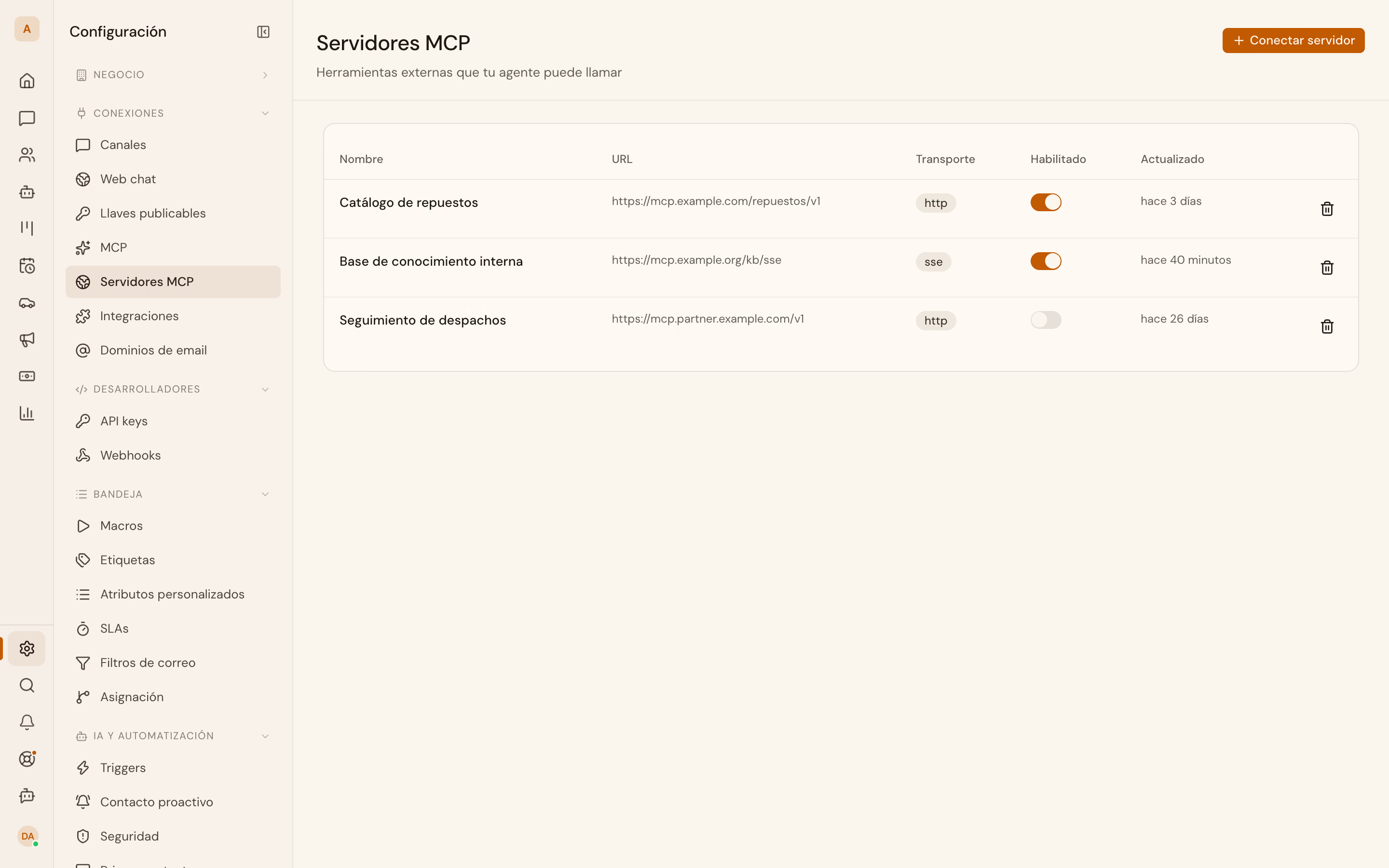
The application is in Spanish
Vitrina's own interface is Spanish, so the screens and buttons named on these pages are quoted in the language you will see on them. The API and this documentation are the parts that speak English.
Costs, margins and commissions
It is the one decision you make when connecting, and it arrives switched off.
Ticked, your AI can additionally answer about what you paid for each unit, the margin on each deal and your team's commissions. Unticked, those tools don't exist for the connector. The model can't see them, so it never spends a turn trying, and it never tells you there's a report it can't open.
In the OAuth flow the checkbox is on the permissions screen. With a connection key, it is on the form where you create it.
What your AI sees of a person
It depends on the workspace's line of business: in one of them identity travels redacted by default.
Your AI sees each contact the way your team does: name, phone and email, with their leads, the units they're interested in and their appointments. There's no identity filter on top. What narrows the view is your role, exactly as in the app (see It sees what you see, below).
One connection, one workspace
The credential is born attached to the workspace you were in when you authorised, exactly like an sk_ key (see Authentication). There's no workspace parameter on any call, and it can't be moved to another. If you run two workspaces, that's two connections.
The permissions screen says so before you decide:
La conexión se creará en el workspace que tienes activo. Si querías otro, cámbialo antes de continuar.
The connection will be created in the workspace you have active. If you meant another one, switch before continuing.
It sees what you see
A connected app acts as the person who authorised it, in that workspace. It sees exactly what that person sees in Vitrina, resolved again on every call. If an admin changes your role, or narrows your Visibilidad de registros (Record visibility) to «Solo asignados», the next question you ask your AI is already answered from that view. Same for Visibilidad de stock (Stock visibility) set to «Solo sus sucursales». What you accepted when connecting is a ceiling, never more than your role allows today. And if your membership ends or is suspended, the connection answers 401 from the very next call, even though nobody revoked it.
How your client discovers it
You do not need to know this in order to connect, but it explains what you see if you watch the traffic.
A call with no credential answers 401 with the address of its own authorization server in a header. With that, an MCP client starts the flow by itself:
HTTP/2 401
www-authenticate: Bearer resource_metadata="https://api.vitrinadev.com/.well-known/oauth-protected-resource/mcp"
access-control-expose-headers: WWW-Authenticate
content-type: application/json; charset=utf-8

{"error":{"code":"UNAUTHORIZED","message":"Missing bearer token","requestId":"1e186199-a51c-4987-8e33-ba8971c51fa5"}}
From there the client reads the two discovery documents:
curl https://api.vitrinadev.com/.well-known/oauth-protected-resource{
"resource": "https://api.vitrinadev.com/mcp",
"authorization_servers": ["https://api.vitrinadev.com"],
"scopes_supported": ["mcp:connector", "dealership_economics:read"],
"bearer_methods_supported": ["header"]
}curl https://api.vitrinadev.com/.well-known/oauth-authorization-server{
"issuer": "https://api.vitrinadev.com",
"authorization_endpoint": "https://api.vitrinadev.com/oauth/authorize",
"token_endpoint": "https://api.vitrinadev.com/oauth/token",
"registration_endpoint": "https://api.vitrinadev.com/oauth/register",
"revocation_endpoint": "https://api.vitrinadev.com/oauth/revoke",
"scopes_supported": ["mcp:connector", "dealership_economics:read"],
"response_types_supported": ["code"],
"grant_types_supported": ["authorization_code", "refresh_token"],
"code_challenge_methods_supported": ["S256"],
"token_endpoint_auth_methods_supported": ["none"],
"revocation_endpoint_auth_methods_supported": ["none"]
}A client either registers itself (POST /oauth/register, dynamic registration) or identifies itself with the URL of its own metadata document. Claude Code does the second. In both cases there's PKCE S256 and no client secret: token_endpoint_auth_methods_supported is ["none"].
The token that comes out at the end lasts an hour and carries what it needs to renew itself:
{
  "access_token": "sk_TOfO-agV…",
  "token_type": "Bearer",
  "expires_in": 3600,
  "refresh_token": "rt_ojdAa_Fo…",
  "scope": "mcp:connector dealership_economics:read"
}
The access_token is an sk_ key: an OAuth authorisation and a connection key are the same credential underneath, which is why they reach the same tool profile. What changes is who stores it and who renews it.
Carry on with your client
Connect Claude web and desktop
Personalizar → Conectores → Agregar conector personalizado.
Connect Claude Code
claude mcp add, then /mcp to authorise.
Connect Cursor
mcp.json, and the sign-in button.
Connector tools
What your AI sees, by pack. Generated from the real catalogue.
Use the whole API from your AI
search_operations, describe_operation and call_operation: any published operation your connection has been granted.
Fix a failing MCP connection
The errors that come out for real, with their exact text.